A full 3D racing game runs in a phone browser today, no store involved. Mars Rally Championship, a free browser rally game, detects a touch-capable device under 1200 pixels wide and swaps in on-screen controls: GAS, brake, handbrake, an analog steering track with a draggable thumb, look arrows and gear chips. It locks to landscape and shows a rotate prompt in portrait. It also installs as a progressive web app, so you can put it on your home screen and get a fullscreen icon and a much faster second load.
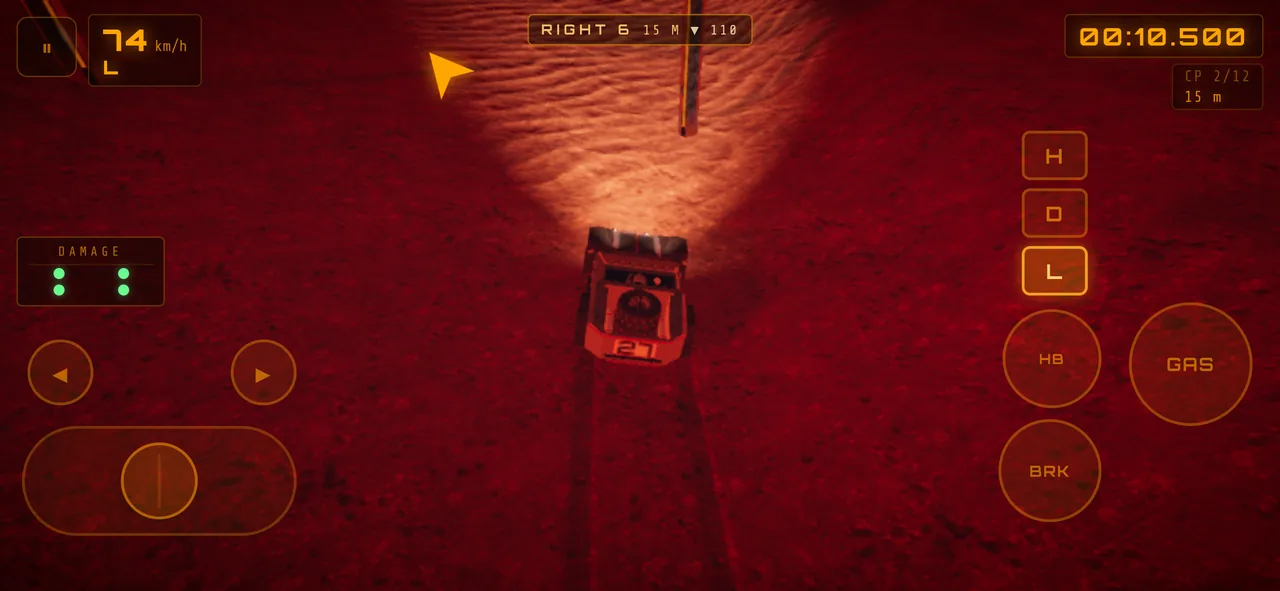
In-game screenshot: on a touch device under 1200 pixels wide the overlay switches itself on, and steering is an analog track, not two buttons.
Touch controls turn themselves on
There is no mobile toggle to find. The input layer checks two things at once: whether the device reports touch support, and whether the window is narrower than 1200 pixels. Both true means the touch overlay activates over the render canvas.
That threshold is deliberate. A large tablet in landscape often lands above it and gets the desktop treatment, which is what you want if a keyboard is attached. A phone in landscape never does.
Two things happen the moment the overlay appears. The game asks the browser to lock the screen to landscape through the Screen Orientation API — a request iOS Safari ignores, since it does not support programmatic locking — and it starts watching for portrait. Whenever the window is taller than it is wide, an overlay covers the game with the line "ROTATE YOUR DEVICE / Mars Rally plays in landscape mode". It disappears the instant the aspect ratio flips back. The manifest backs the same intent: orientation is landscape and display is fullscreen, so an installed copy launches sideways without browser chrome.
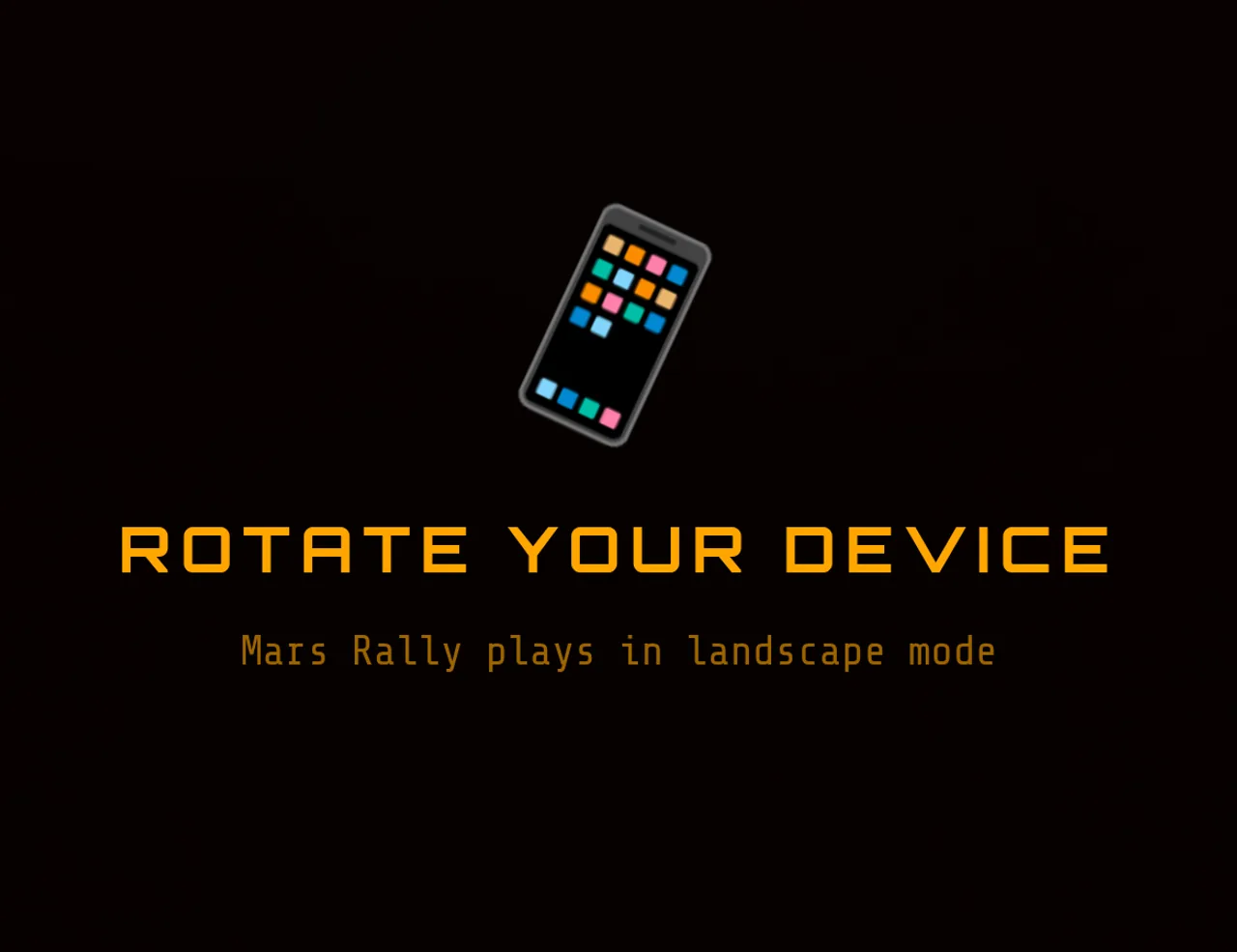
In-game screenshot: held upright, the game covers itself with a rotate prompt that disappears the moment the phone turns sideways.
What is on screen, and how to use it
The steering track sits on one side, the pedals on the other, with gear chips and camera-look arrows where your thumbs already are.
| Touch control | What it does | The tip that makes it work |
|---|---|---|
| Steering track (draggable thumb) | Analog steering: thumb position across the track maps proportionally to steering angle: up to the 0.85 rad (~49°) lock below ~13 km/h, about 20° above ~27 km/h (steer-by-wire) | Rest your thumb near centre and move in millimetres. Lifting off snaps steering to zero, a useful panic reset |
| GAS | Throttle, hold to apply | Hold it steady. Acceleration is traction-limited all the way to 100 km/h, so stabbing at it gains nothing |
| BRK | Brake, hold to apply | Press early. Stopping from 100 km/h takes roughly 125 metres and about 9 seconds |
| HB | Handbrake, hold to apply | Your rotation tool. A short stab plus steering pivots the nose where feathering cannot |
| Gear chips L / D / H | Tap to select a discrete gear; the active chip highlights | Launch in L, tap D once rolling. They are taps, not holds |
| Look left / right arrows | Swing the camera without steering | Use them on blind crests — the rover keeps its line |
| Pause | Opens the pause menu mid-run | The graphics preset lives here, so this is also your performance dial |
The steering track is analog, so treat it like a stick
This is the thing most players get wrong. The track is not a left/right pair of buttons. Your thumb's horizontal distance from the centre is divided by the track's half-width and fed in as a value from -1 to +1, clamped at the edges. Halfway out is half lock.
That matters because the grip budget on Mars is small: tire friction around µ 0.70 against 3.72 m/s² of gravity, plus a little soil cohesion, gives roughly 3.1 m/s² total, shared between braking, cornering and throttle. Minimum corner radius at 100 km/h is about 250 metres. Full input at speed already asks for the whole budget — the steer-by-wire trims lock to about 20° above ~27 km/h for exactly that reason — so a corner tighter than that radius runs wide with nothing left to brake with.
So drive the inner third of the track. Small, held offsets, adjusted rather than reset. Snapping your thumb to the edge and back is the touchscreen equivalent of sawing at the wheel.
The handbrake replaces the finesse you do not have
On a keyboard or a controller you can feather steering through a hairpin. On glass, with no detents and no force feedback, you cannot — and the handbrake covers exactly that gap. A brief stab while the wheel is already turned breaks rear grip and rotates the rover far more sharply than steering lock alone. Release, straighten, then throttle.
Use it for tight direction changes and slow hairpins, not fast corners: rotation you did not ask for costs more than the metres you saved. The wider set of habits is in how to get faster at rally driving games; touch just narrows which of them you can execute cleanly. The tutorial drills the handbrake pivot and the braking distance directly across nineteen lessons, which beats a timed stage as a first session.
Installing it to your home screen
Mars Rally Championship ships a web app manifest, which is what turns a URL into something that behaves like an installed app. The fields are short: name is "Mars Rally Championship", short_name is "Mars Rally", display is fullscreen, orientation is landscape, and start_url points at /play, so the icon launches straight into the game rather than the marketing site.
On iOS Safari: tap Share, scroll down, tap Add to Home Screen, confirm. Safari offers no automatic install prompt, so this manual route is the only one — the game detects iOS and shows the same steps in a small card.
On Android Chrome: accept the install prompt when it appears, or open the browser menu and choose Install app / Add to Home screen.
That card is not spammy by design. It only appears once you have a 2-day streak or three finishes on record, and dismissing it buys two weeks of silence.
Be clear about what installing buys you: a home-screen icon, a fullscreen launch with no address bar eating the top of the display, and repeat loads served largely from cache. It does not make this a native app. There is no App Store or Play Store listing, no store download, no purchase, no account. It is the same web page, given a shortcut and a cache.
What the service worker actually caches
The strategy is split by risk. Game code — the /play document, everything under /js/ and /css/, and the manifest — is network-first, so you never run stale code while online; the cache is only the fallback when the network fails. The heavy payloads are cache-first: /terrain/, /assets/ and /vendor/, which covers heightmaps, textures, rock models and the self-hosted Three.js build. On top of that the worker pre-caches both web fonts, the ground, rock, sand and macro texture sets, and seven rock models at install time.
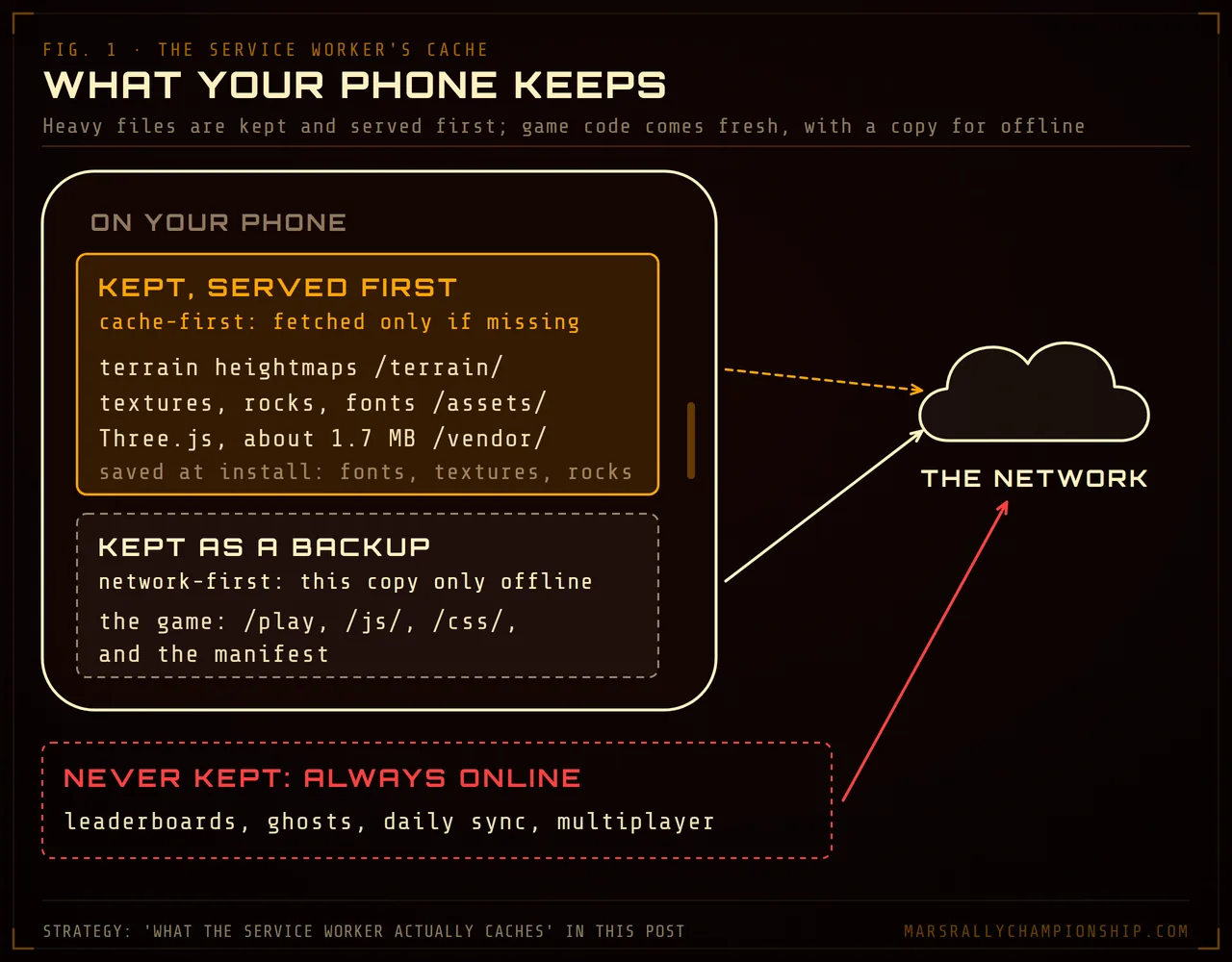
Diagram: heavy files come from the phone first, game code comes fresh with a copy for offline, and everything social always goes online.
The honest limit: everything social goes straight to the network and is never cached. Leaderboards, ghosts, daily challenge sync and multiplayer all need a connection. A cached copy will boot and let you drive, but treat offline as a fallback the caching happens to allow, not a supported mode.
First load is a real download
No install does not mean no bytes. The Three.js build alone is about 1.7 MB of JavaScript, and terrain heightmaps, textures and rock models add considerably more on top. On a metered cellular plan that first visit is a genuine download — far smaller than a native racing game, but not free. Start it on Wi-Fi if you can; the service worker makes every visit after that cheap.
Making it run well on a small screen
The game ships on the HIGH graphics preset, which is optimistic for a phone. The pause menu steps it down HIGH → MEDIUM → LOW, and LOW is the one that matters on mobile: render scale drops to 0.75, bloom switches off, shadows halve to 1024. Dynamic resolution scaling runs on top of whichever preset you choose, trimming further under load without you touching anything.
Four accessibility settings earn their place on a phone specifically. UI scale fixes a HUD designed for a monitor. Minimal HUD clears everything but the essentials. High-contrast HUD is built for deuteranopia, protanopia and tritanopia, and it survives direct sunlight better. Reduced motion damps camera shake to 20% and is auto-detected from your system setting. Haptics are optional. All of them live in settings.
Two neighbouring posts cover the rest of the picture: racing games for Chromebook browsers for locked-down school hardware, and playing browser racing games with a controller if you would rather pair a gamepad than use glass. For other racers in a phone browser, our mobile browser racing games guide compares touch controls, orientation and desktop-only labels.
Where to try this
Three stages are configured and drivable today, and the touch controls are the same in every mode.
- Start driving — bare
/playauto-starts, no menu to navigate - Run the tutorial first — the Proving Ground, nineteen lessons
- Open settings — UI scale, minimal HUD, high-contrast HUD, haptics
- Today's daily challenge — same stage and sky for everyone, resets at local midnight